
Blog
News and updates on our apps
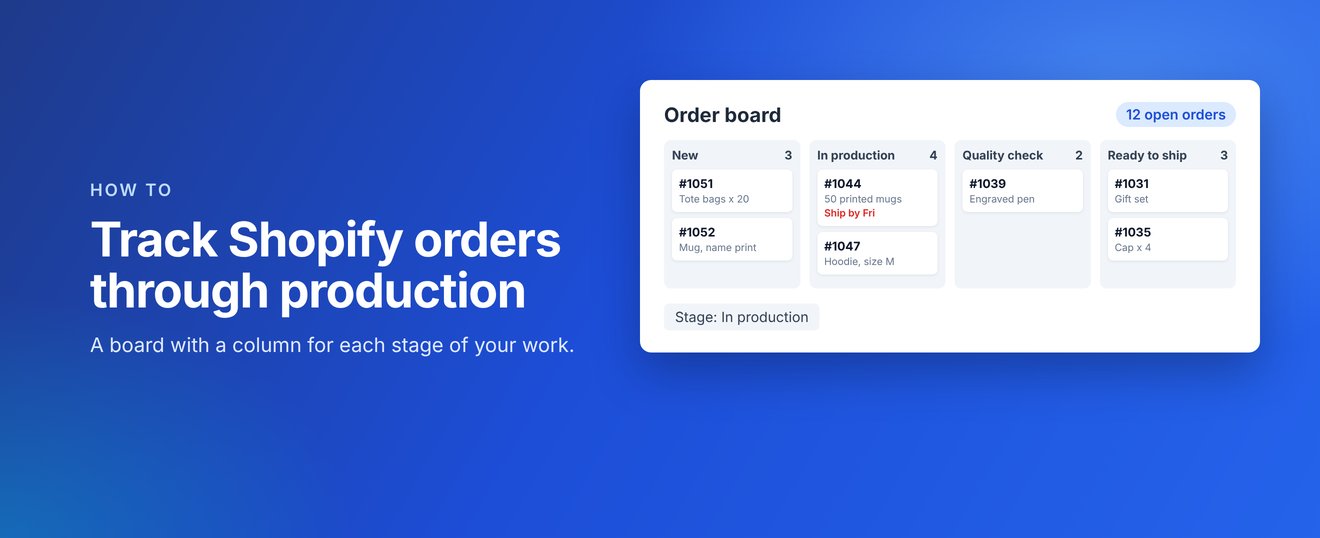
If you make or personalise products to order, your Shopify Orders list does not show where each order is up to. Here is how to put your orders on a board with a column for each stage, using Cue: Order Workflow.
1. Install Cue and set your stages
Install Cue from the Shopify App Store. It starts you off with four stages: New, In production, Quality check and Ready to ship. Add, rename and reorder them to match how you work, for example by adding Awaiting artwork or Printing.
2. Add your open orders
Add your open orders to the board with one click. From then on, new orders join the board on their own.
3. Move orders as you work
Drag a card to the next column, use Move to on the card, or change the stage from the Cue block on the order page. To move lots of orders at once, tick them in your Orders list and use Set stage.
4. See what to make and when it is due
Each card shows product images, options and personalisation, the ship-by date (in red when an order is late) and how long the order has waited, so your team can work without opening every order.
5. Print job sheets for the workshop
Print a job sheet for every order in a column. Each sheet has a QR code that opens the order, for example to move it to the next stage.
Every order is also tagged with its stage, such as Stage: In production, so you can filter your Orders list or use the tags in Shopify Flow. Cue starts at $9.99 USD a month with a 14-day free trial, with unlimited orders and staff on every plan. The Pro plan adds customer progress updates on the order status page, automatic moves and team emails.
Coming soon
Cue: Order Workflow is coming soon to the Shopify App Store. Find out more at cue.zieasoft.com, read the Cue help guides, or see how it fits with our other apps on our apps page.